Camera Calibration
Accurate camera intrinsics (focal length, principal point) are essential for precise tracking. On mobile with AR Foundation, intrinsics are provided automatically. On desktop with Native image source, you should calibrate your camera for best results.
When You Need Calibration
| Image Source | Intrinsics | Calibration Needed? |
|---|---|---|
| Injected (AR Foundation) | Provided per frame | No |
| RealSense | Read from firmware | No |
| Native (desktop camera) | Estimated or from file | Recommended |
| Sequence | Stored in recording | No (captured at record time) |
Without calibration, XRTracker estimates intrinsics from the camera's field of view. This is often sufficient for testing but can cause tracking inaccuracy — especially at object edges and with depth-sensitive poses.
Checkerboard Pattern
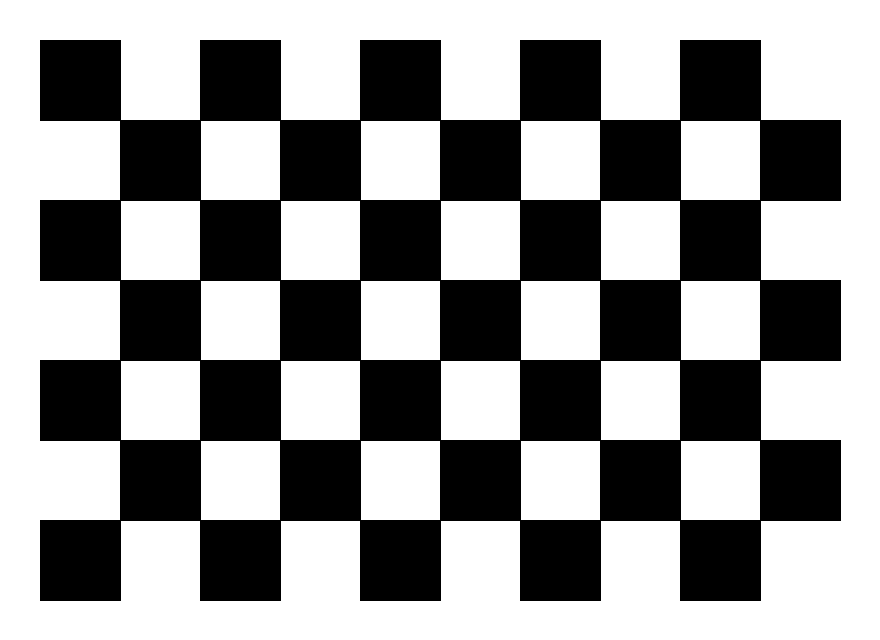
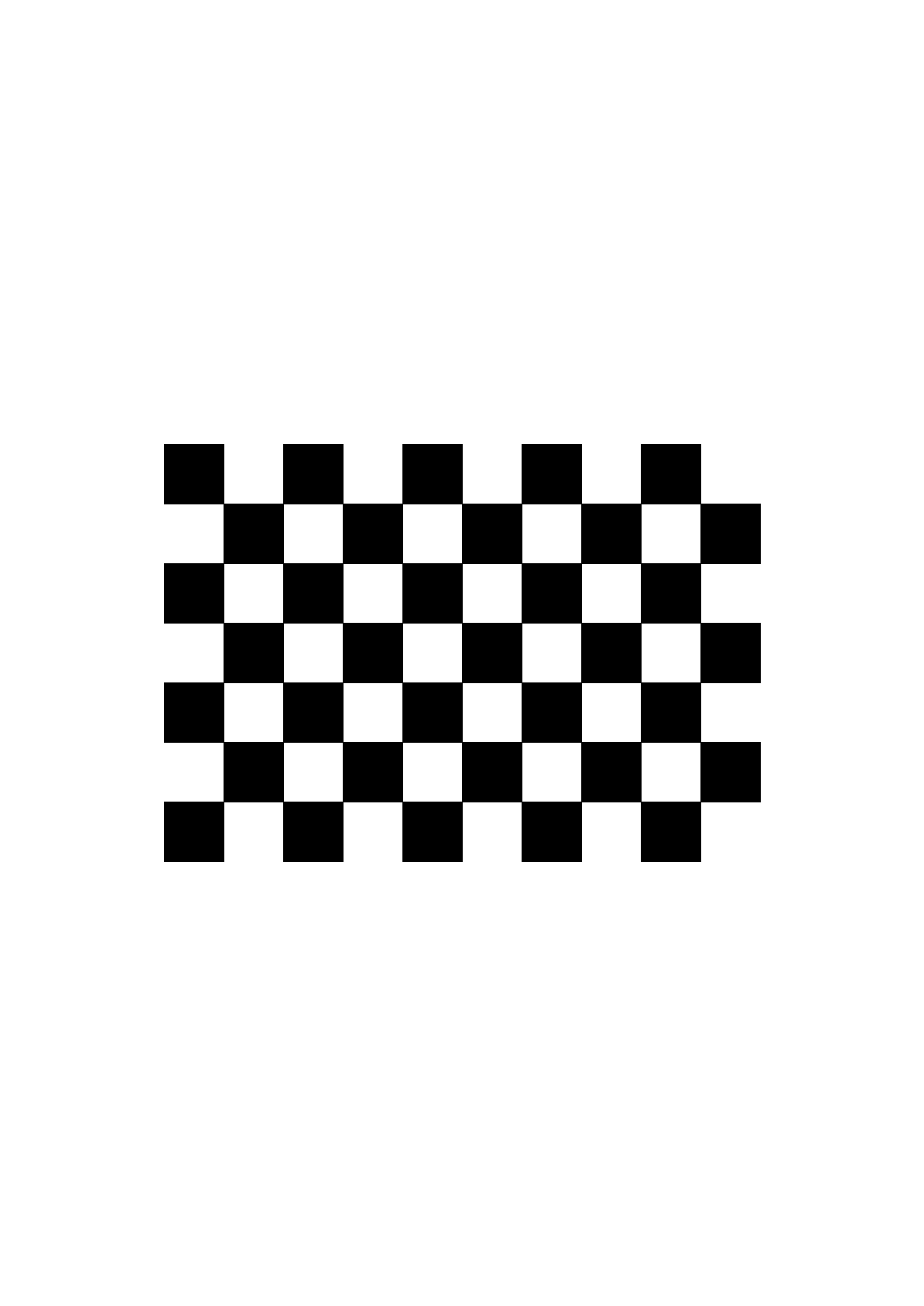
Download and print this 9x6 checkerboard pattern (9 columns x 6 rows of internal corners):
Printing tips
- Print on matte paper (glossy paper causes reflections that confuse corner detection)
- Do not scale when printing — use "Actual size" or 100%
- Mount on a flat, rigid surface (cardboard, clipboard) — any warping invalidates the calibration
- The default pattern is 9x6 internal corners (10x7 squares)
Calibration Tool
XRTracker includes a camera calibration tool for Windows.
Building the Tool
Run from the project root:
This builds calibrate_camera.exe into the tools/ folder. Requires CMake and vcpkg with OpenCV.
Running Calibration
The easiest way is the interactive script:
This will:
- List available cameras
- Let you select a camera and resolution
- Run auto-capture calibration
- Output
camera_calibration_unity.json
Manual Usage
# List cameras
tools\calibrate_camera.exe --list-cameras

# Auto-capture calibration at 1280x720
tools\calibrate_camera.exe --camera 0 --width 1280 --height 720 --auto

# Manual capture (press SPACE for each image)
tools\calibrate_camera.exe --camera 0 --width 1280 --height 720

# Test the calibration result
tools\calibrate_camera.exe --test camera_calibration --camera 0
Command-Line Options
| Option | Description |
|---|---|
--camera <id> |
Camera index (default: 0) |
--list-cameras |
List available cameras and exit |
--select-camera |
Interactive camera selection |
--width <px> |
Capture width (default: 640) |
--height <px> |
Capture height (default: 480) |
--auto |
Auto-capture mode (no spacebar needed) |
--num-images <n> |
Number of images to capture (default: 50) |
--checkerboard <WxH> |
Internal corners pattern (default: 9x6) |
--output <name> |
Output filename without extension |
--test <file> |
Test undistortion with existing calibration |
Calibration Process
Auto-Capture Mode (Recommended)
- Hold the checkerboard in front of the camera
- Move it slowly to different positions, angles, and distances
- The tool automatically captures when it detects a stable, diverse pose
- A progress bar shows capture count
- Aim for at least 15-20 captures from varied positions
Tips for Good Calibration
- Cover the entire frame — move the pattern to all four corners and the center
- Vary the angle — tilt the board in different directions (not just head-on)
- Vary the distance — close and far captures improve the model
- Keep the board fully visible — all corners must be in frame for detection
- Avoid motion blur — hold the board still during capture
Calibration Quality
The tool reports an RMS reprojection error after calibration:
| RMS Error | Quality |
|---|---|
| < 0.5 px | Excellent |
| 0.5 - 1.0 px | Good |
| > 1.0 px | Acceptable — consider recalibrating with more diverse poses |
Using the Calibration in Unity
The calibration tool outputs camera_calibration_unity.json with normalized intrinsics:
{
    "deviceName": "HD Webcam",
    "intrinsics": {
        "fx": 0.82031250,
        "fy": 1.45833333,
        "cx": 0.50156250,
        "cy": 0.49722222,
        "width": 1280,
        "height": 720
    }
}
To use it:
- Copy the JSON contents into your
camera-calibrations.jsonfile inStreamingAssets/ - On the XRTrackerManager, set the Calibrations File to the JSON filename
- The Auto Select Camera Name should match the
deviceNamein the calibration file
The calibration file supports multiple cameras — add each as a separate entry in the JSON array.
Note
Calibration is resolution-specific. Intrinsics are normalized (divided by width/height) so they work at any resolution, but for best accuracy, calibrate at the resolution you plan to use for tracking.